
Make a lasting first impression with our exclusive collection of border front page designs for projects. Whether you are looking for simple borders, aesthetic floral designs, or professional templates for university assignments, we provide high-quality, free MS Word templates that are ready to download and easy to edit. Every project border design in our library is specifically optimized for A4 size paper, ensuring a perfect fit for your school or college reports. Enhance your creativity and save time by choosing a front page border that matches your project’s theme—all available for instant download in .doc format.
How to Use ?
- Step 1: Browse the designs below and pick your favorite.
- Step 2: Click the “Download” button to get the MS Word file.
- Step 3: Open the file and replace the placeholder text with your name, class, and project title.
- Step 4: Save as a PDF for a perfect, professional print!
Border Front Page Design For Project [Free MS Word Template Download]



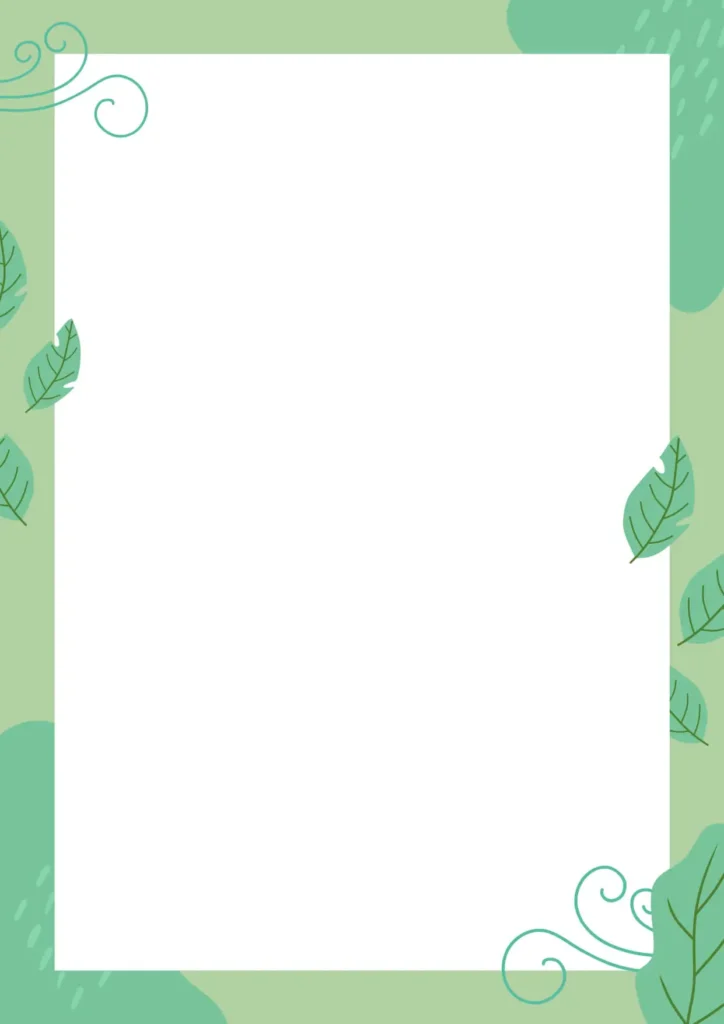



Tips To Create Border Page Designs For Projects
Here are some tips for creating a border design for a cover page:
- Choose a relevant theme: Select a theme that complements the content of your cover page. For example, if you’re designing a cover page for a travel brochure, you may want to use a border design that includes images of different destinations.
- Use high-quality images: Incorporate high-quality images or illustrations that are relevant to your theme. Make sure that they are clear and in focus, as blurry or pixelated images can detract from the overall design.
- Incorporate whitespace: Use whitespace around your border design to create balance and make it easier to read. This will also help your border design stand out and grab the reader’s attention.
- Use contrasting colors: To make your border stand out, use a color that contrasts with the background. For example, if the background is light, use a dark color for the border.
- Keep it simple: A simple, clean border design is usually more effective than a complex or cluttered one. Avoid using too many colors, shapes, or textures, as this can make your design look busy and distracting.
- Consider typography: Select a font that complements your border design and the content of your cover page. Use a font size and style that is easy to read and appropriate for the audience.
- Experiment with shapes: Consider using different shapes for your border design, such as circles, squares, or triangles. This can help create a unique and eye-catching design.
Best Tools To Create Border Page Designs For Projects
There are several tools you can use to create Border Page Designs For Projects, including:
- Microsoft Word: Microsoft Word is a popular word processing program that includes templates and design tools for creating professional-looking front pages. You can choose from a variety of pre-designed templates or create your own custom design.
- Canva: Canva is a popular online graphic design tool that offers a range of templates, graphics, and design tools for creating front page designs. It’s user-friendly and requires no prior design experience.
- Adobe InDesign: Adobe InDesign is a professional-level graphic design software that allows you to create complex designs, including front page designs for assignments. It offers a range of design tools and templates to help you create visually stunning designs.
- Google Docs: Google Docs is a web-based word processing program that offers templates and design tools for creating front page designs. You can also collaborate with others on your design in real-time.
- PowerPoint: PowerPoint is a popular presentation software that can also be used to create front page designs. It offers a range of design tools and templates, making it easy to create professional-looking designs.
Check These Blogs Also
Border Front Page Design For Project [Free MS Word Template Download]
FAQ
What is the downloaded file format?
.doc format(MS Word file)
How to edit the template?
You can edit the template using MS Word
Template size?
A4